

Appearance
How Folio works
Folio is a portfolio and gallery platform for photographers and visual artists. A portfolio is the public home for your work. Galleries are sets of photos inside a portfolio that you organize, preview, and publish.
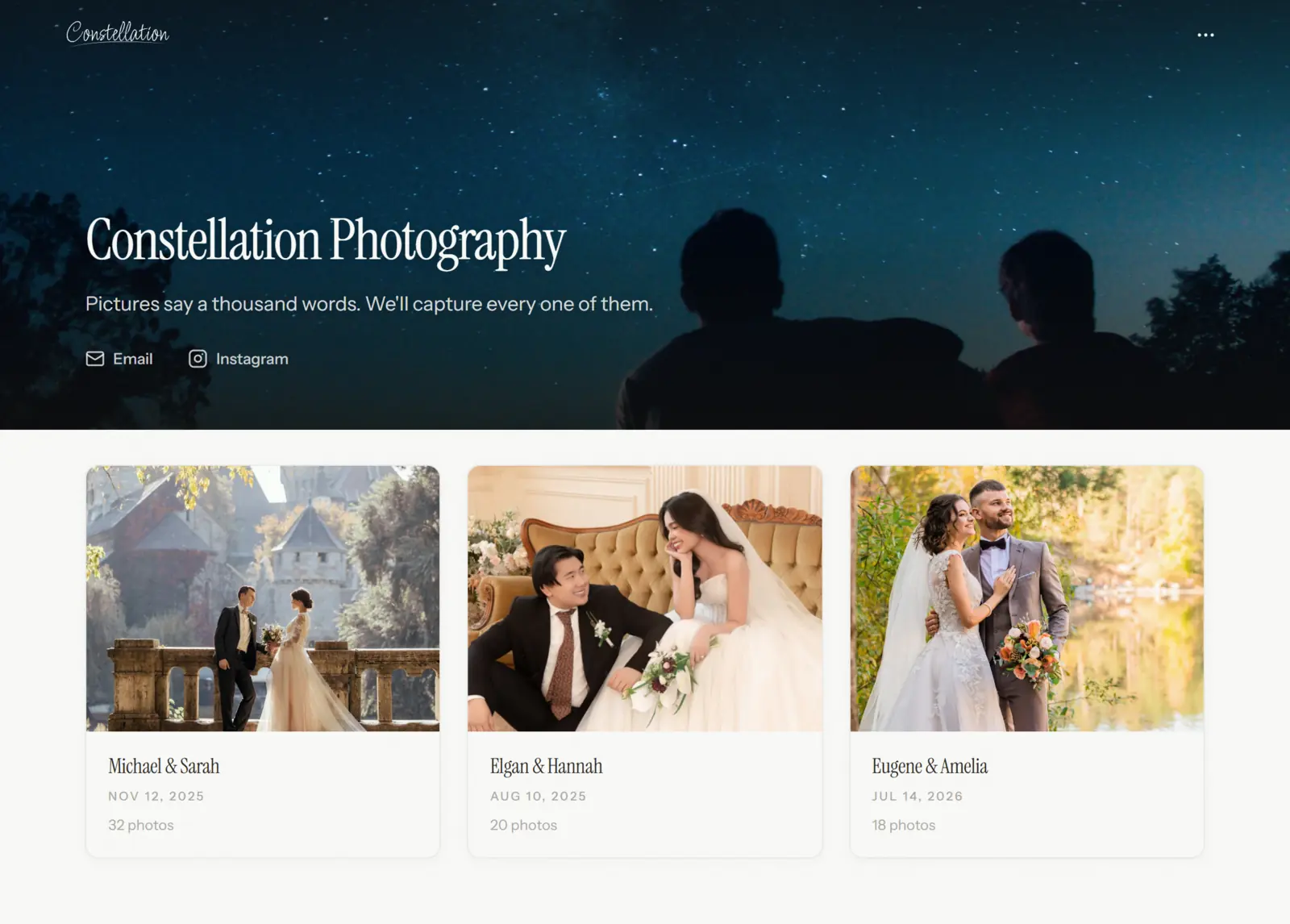
The usual workflow is to create a portfolio, create a gallery, upload and organize photos, choose who can see the gallery, and publish when ready.
Main concepts
| Concept | Description |
|---|---|
| Portfolio | A branded public home with its own address. It contains your galleries, public and private alike |
| Portfolio homepage | The public front page of a portfolio, where public galleries are listed |
| Gallery | A set of photos inside a portfolio, with its own settings and visibility |
| Section | A named group of galleries within a portfolio |
| Collection | A named group of photos within a gallery |
| Visibility | Who can see a gallery: private, unlisted, or public |
| Publish | The action that makes a gallery's edits public |
Portfolio
Mika Tanaka
Weddings2Section
Aiko and Ren
214 items
Hana and Sol
168 items
Travel1Section
Above the tree line
36 items
Gallery
Aiko and Ren
CollectionsCeremonyReceptionPortraits
Basic workflow
Visibility
Visibility decides who can see a gallery. New galleries start as private. A private gallery can be seen only by you, in the dashboard.
Private
Only you
- Gallery link works
- Listed on your homepage
Unlisted
Anyone with the link
- Gallery link works
- Listed on your homepage
Public
Anyone
- Gallery link works
- Listed on your homepage
When a gallery is ready, click Share in the gallery editor and choose a visibility:
| Visibility | Description |
|---|---|
| Private | Only you can see the gallery |
| Unlisted | Anyone with the gallery link can see it. It is not listed on the portfolio homepage and is intended to stay out of search engines |
| Public | Anyone can see it, and it is listed on the portfolio homepage |
Use Copy link in the Share gallery dialog to copy the gallery link. Use Open in new tab to check what visitors will see before sending it.
Password protection and expiry can be used with private, unlisted, and public galleries. See Password protection and Expiry dates.
Publishing
Publishing decides which version of a gallery visitors see. It is separate from visibility.
In the editorUnpublished changesPublished
What visitors see
Visibility, password and expiry changes skip this step and apply as soon as they are saved
A gallery is published automatically the first time its visibility changes from private to unlisted or public. After that, edits you make in the editor stay as unpublished changes until you click Publish changes in the Share gallery dialog.
This includes changes to photos, collections, presentation settings, download settings, the resolution cap, and the watermark.
Password protection and expiry are exceptions. They apply immediately when saved.