

Appearance
Add and organize photos
Upload photos directly in the gallery editor. Click Upload or drag files into the editor window.
Uploading photos
- Open a gallery from your portfolio
- Click Upload in the top right, or drag photos into the editor window
- Wait for the photos to appear in the selected collection
Photos are added to the collection that is selected when the upload starts.
Reordering photos
Drag a photo to reorder it within a collection. You can also drag a photo to another collection to move it.
Collections can also be reordered with drag and drop.
Selecting multiple photos
There are two ways to select multiple photos:
- Drag across the photo area to draw a selection box
- Click one photo, then hold Shift and click another photo to select a range
You can drag the selected photos to reorder them together or move them into another collection.
Removing photos
Select one or more photos and click Remove from gallery. An Undo option appears for a few seconds, and you can also undo with Cmd+Z (Ctrl+Z on Windows); see Undo and redo. Removed photos do not go to Trash.
Presentation and download settings
The left panel opens to the Presentation tab by default. Presentation settings control how the gallery looks.
Open the Access tab to set:
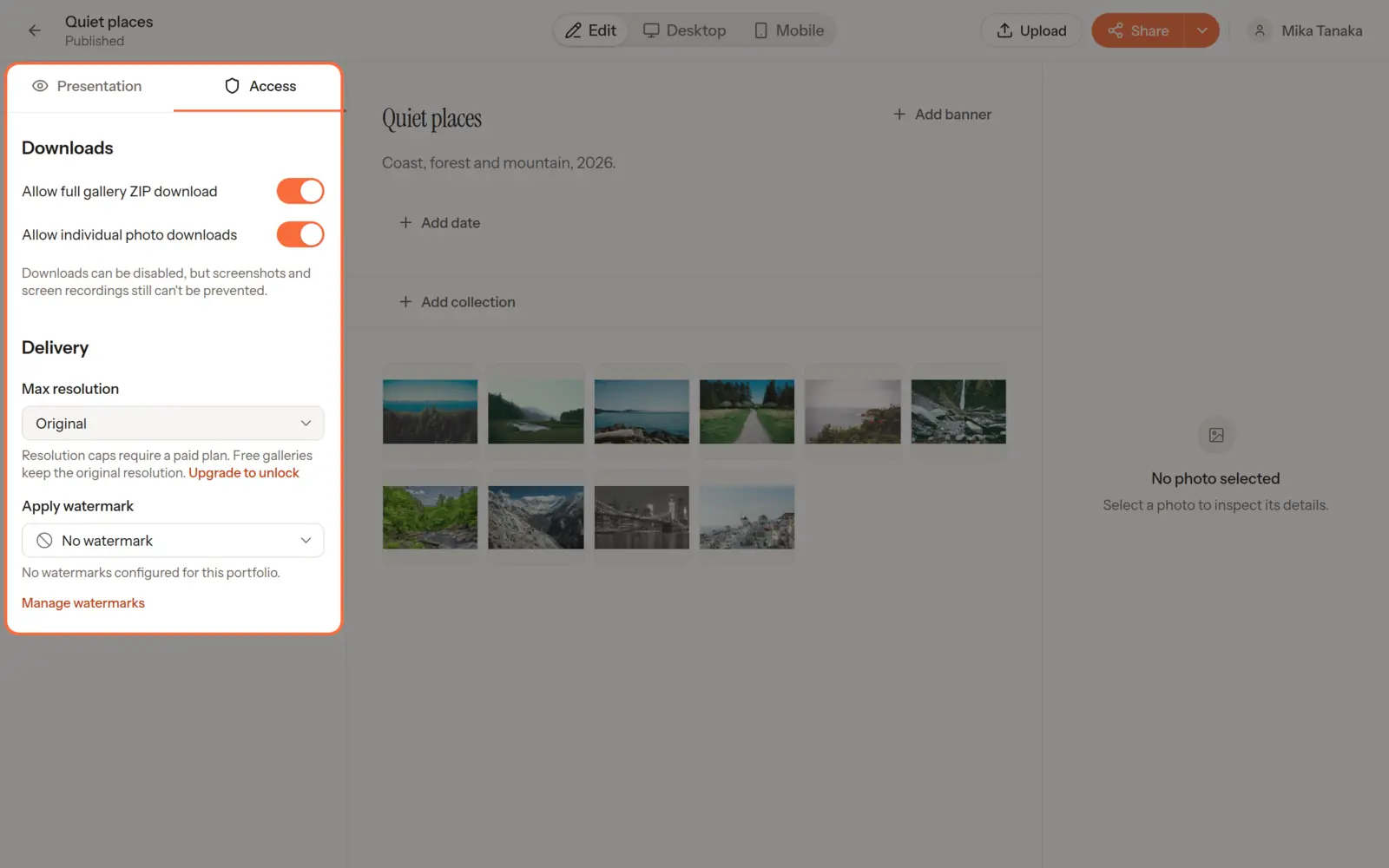
| Setting | Description |
|---|---|
| Allow full gallery ZIP download | Lets visitors download the whole gallery as a ZIP file |
| Allow individual photo downloads | Lets visitors download single photos |
| Max resolution | Caps the size of the photos visitors can view and download |
| Apply watermark | Applies one of your watermarks when the gallery is published |
Large galleries can take a while to prepare as a ZIP. The Download button shows progress, and the download starts on its own when the file is ready. Once it's prepared, later downloads start straight away, can be paused and resumed, and show their full size. Publishing changes to the photos prepares a new file.
Resolution cap
Max resolution caps the size of the photos delivered from the published gallery. This is useful for a proof gallery, where clients review the work before receiving the originals.
For example, you can publish a gallery with downloads enabled and a resolution cap, then set Max resolution back to Original when final delivery is ready.
Watermarking
Watermarking adds a visible text or image mark to the photos in a published gallery. This is useful when sharing a proof gallery before final delivery.
See Watermarking for watermark setup.